
Connect your Amazon store to StartFill
Link Amazon to our warehouse with FFN Connect in about 15 minutes — no software to install, no developer needed, and your Amazon password never leaves Amazon.
One connection, everything in sync
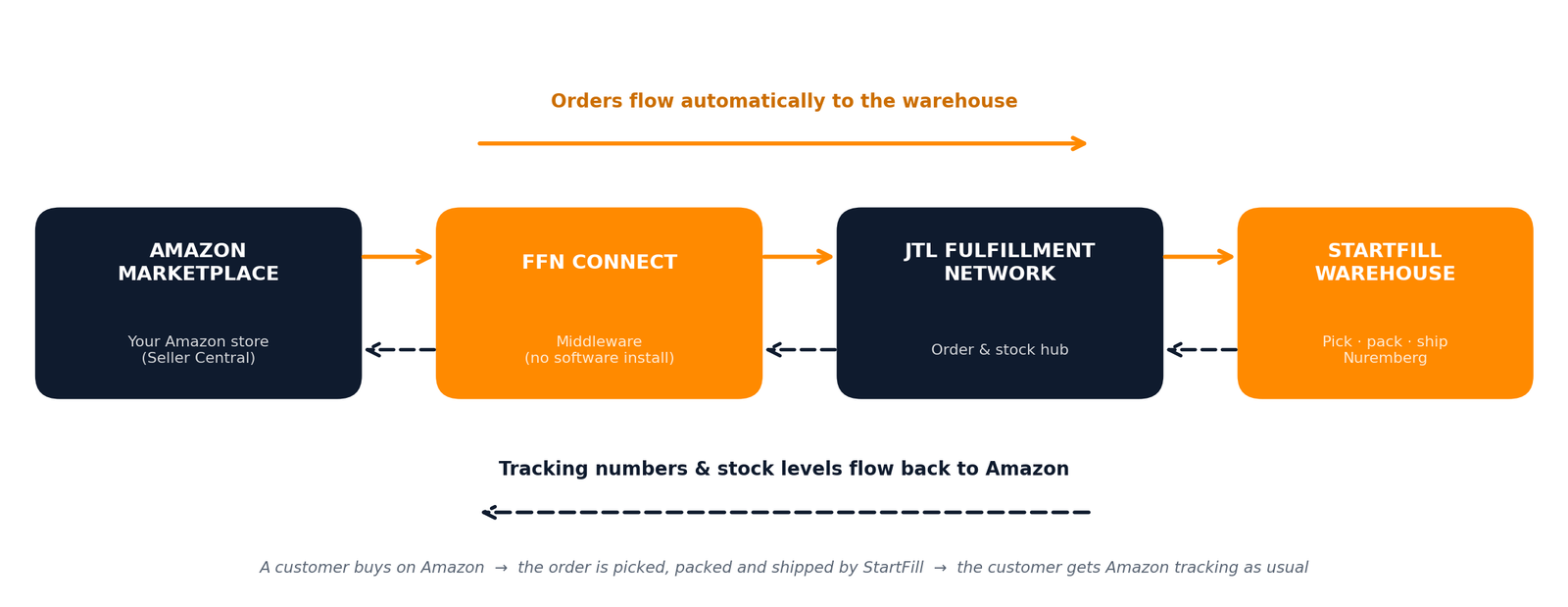
FFN Connect — the official middleware of the JTL Fulfillment Network (FFN) — sits between your Amazon store and the StartFill warehouse. Orders travel one way; tracking numbers and stock levels travel back.
Five steps to your connection
The FFN Connect interface is currently German-first — the screenshots below show the German labels with English explanations. All account details shown are examples.
Create your FFN Connect account
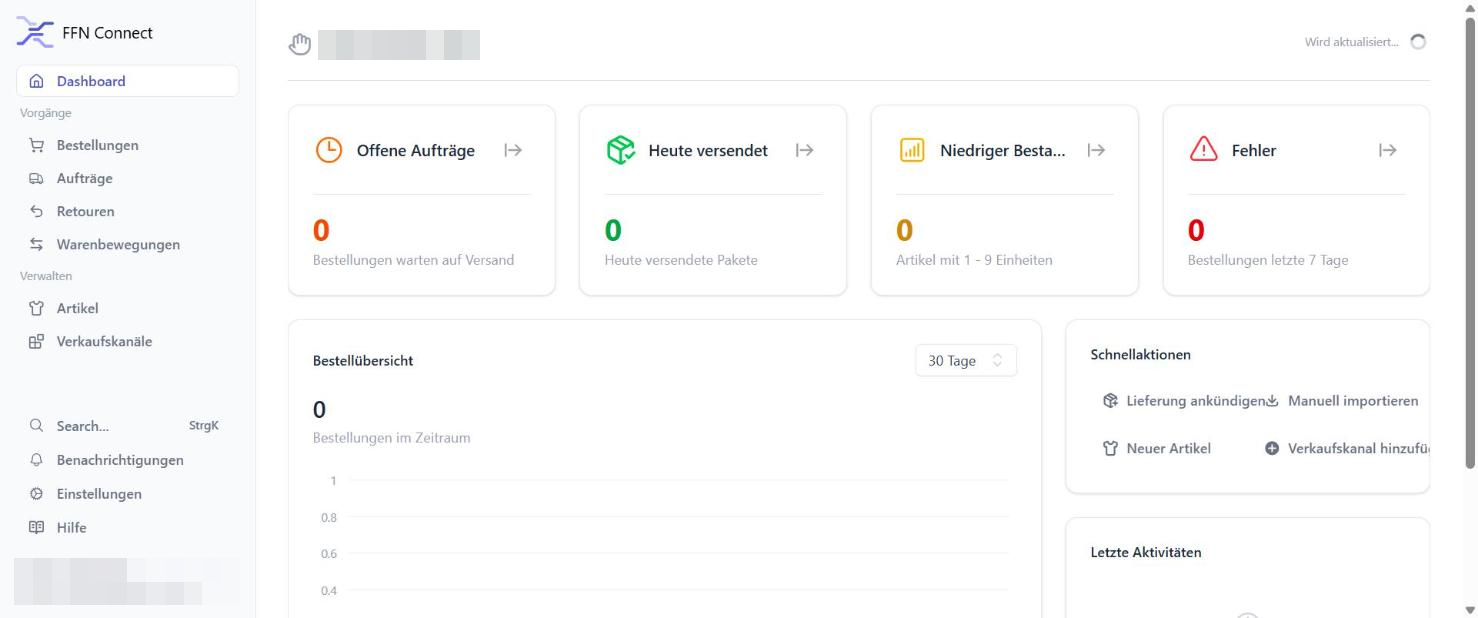
Open ffn-connect.de/register and create an account with your e-mail address and a password (or use Login mit JTL Account if you already have one). After confirming your e-mail you land on your personal dashboard — this is where your orders, shipments and stock will appear later.
Start the free 14-day trial
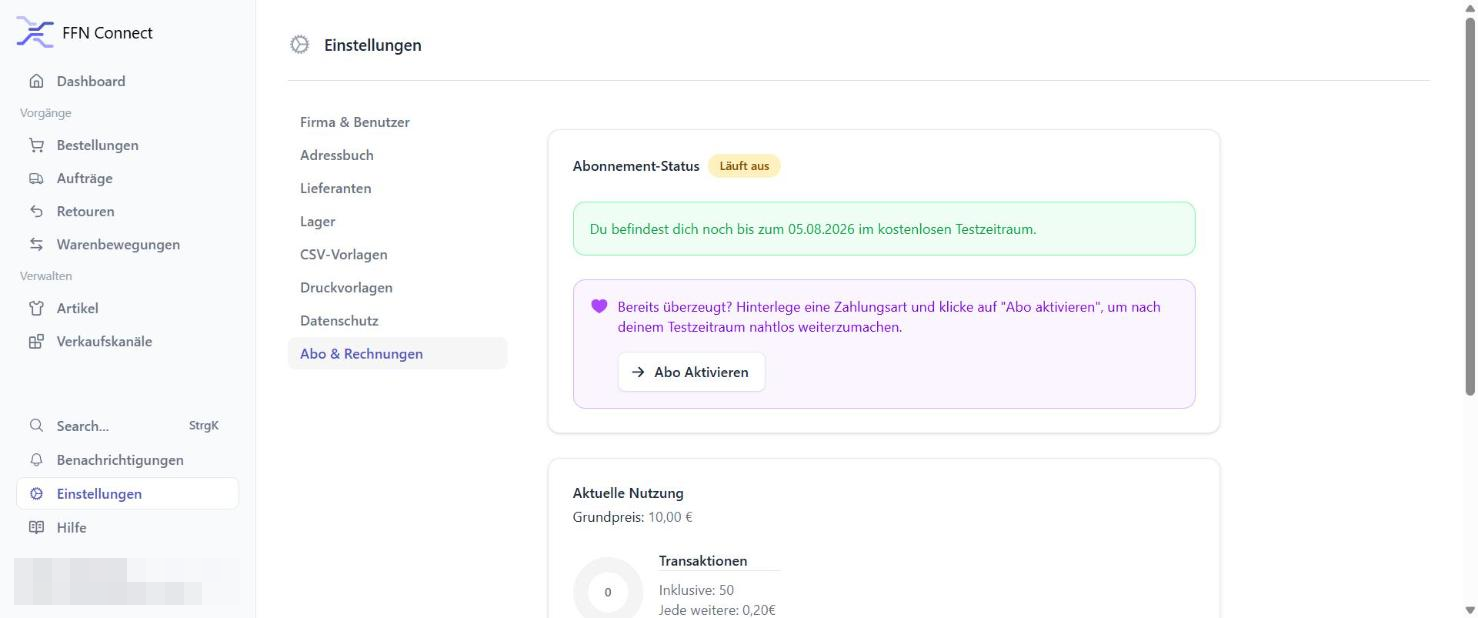
Go to Einstellungen → Abo & Rechnungen and click “Testzeitraum starten” (Start trial period). No payment details are required.
Add Amazon as a sales channel
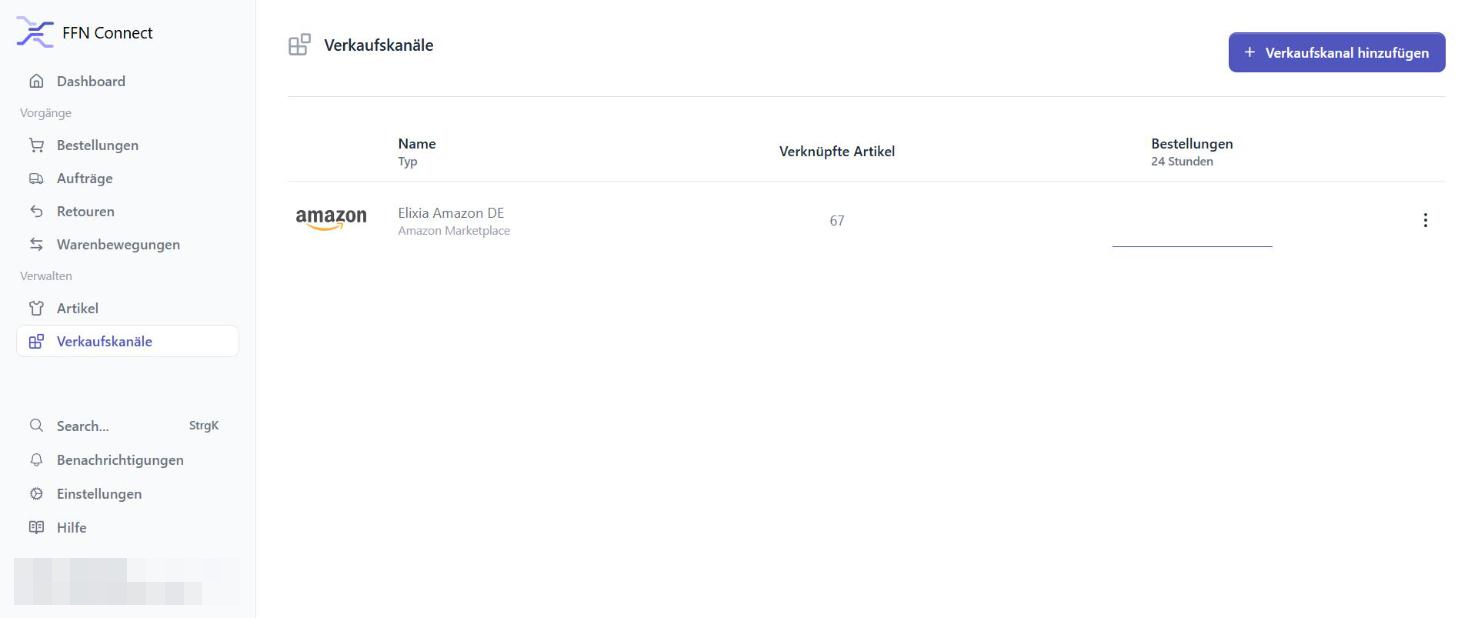
Open Verkaufskanäle in the left menu and click “+ Verkaufskanal hinzufügen” (Add sales channel).
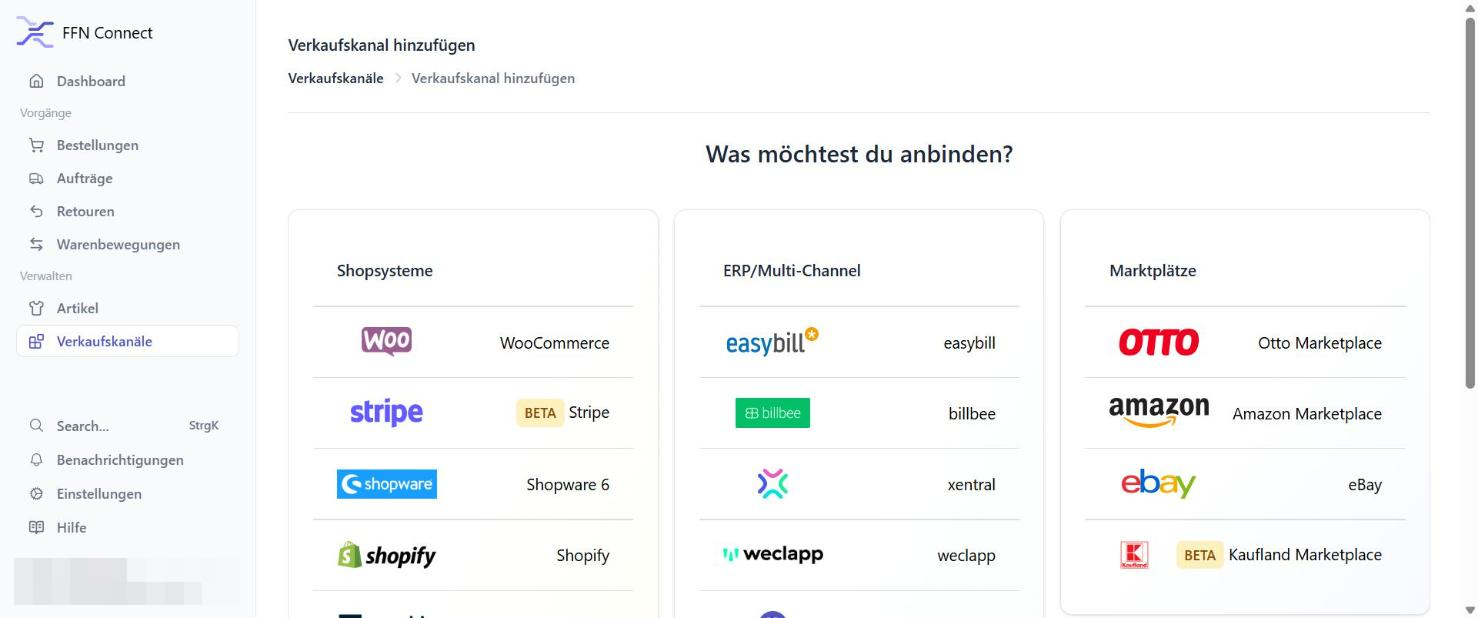
In the integration catalog, choose Amazon Marketplace from the Marktplätze column. (eBay, OTTO, Kaufland, Shopify, WooCommerce and more can be added the same way later.)
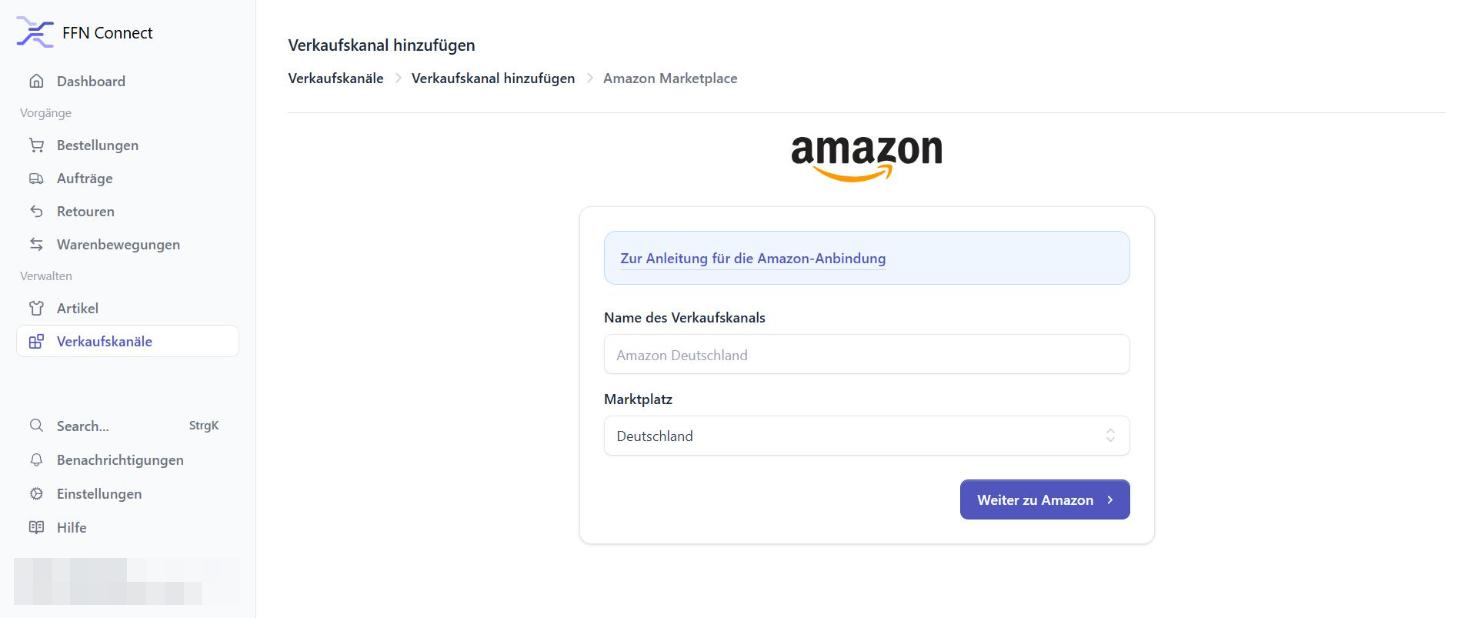
Give the channel a name of your choice (for example “My Amazon DE”), select Deutschland as the marketplace for Amazon.de, and click “Weiter zu Amazon” (Continue to Amazon).
Authorize with your Amazon seller login
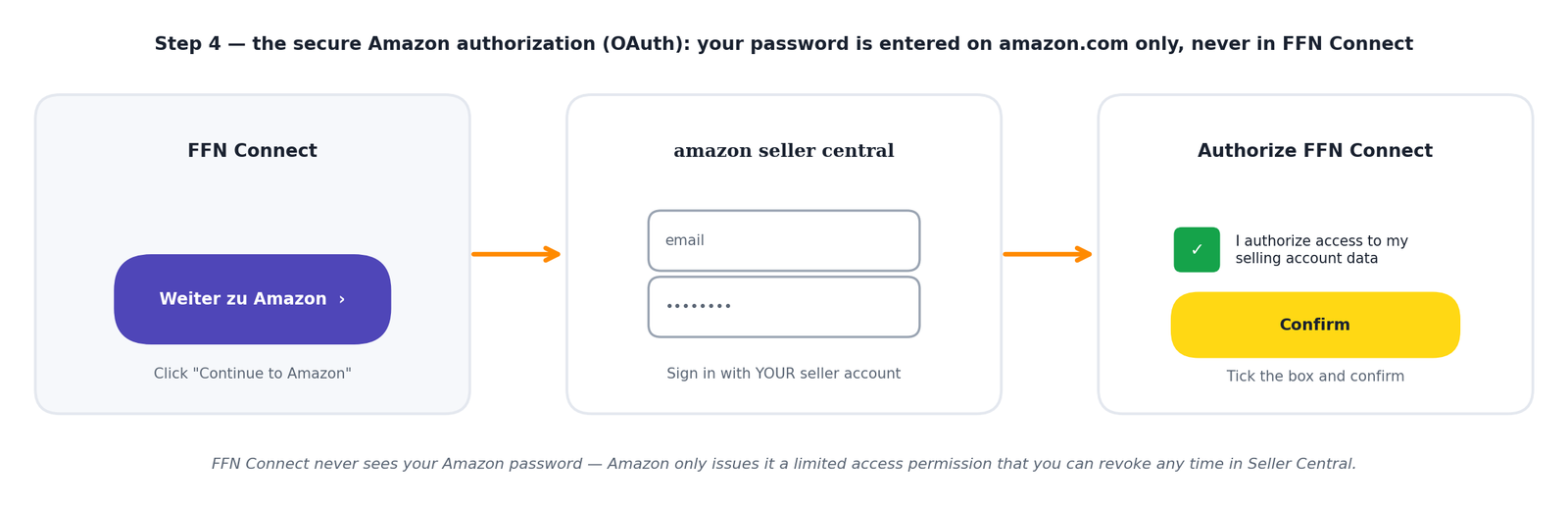
You are forwarded to Amazon Seller Central — Amazon’s official, secure authorization process (SP-API OAuth). Sign in with your normal seller credentials directly on Amazon’s website, then tick the authorization checkbox on the consent page and click Confirm. Amazon returns you to FFN Connect automatically.
Import your listings & set the order start date
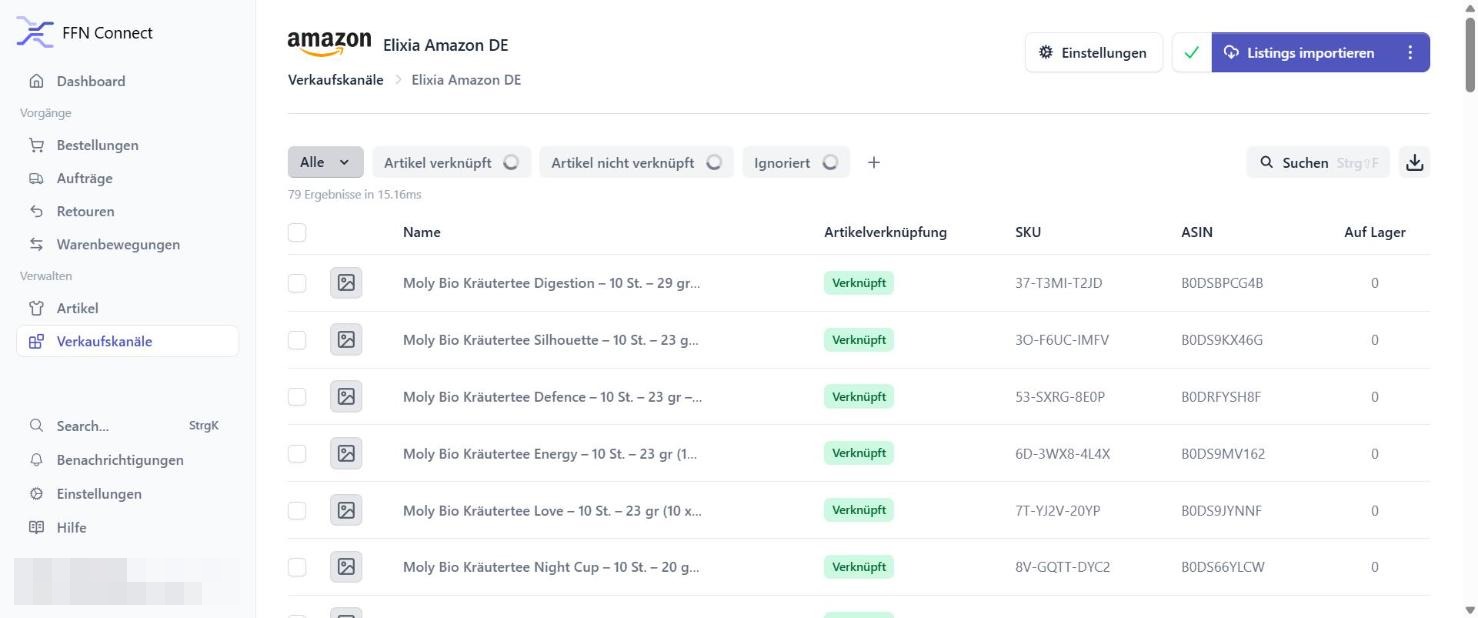
Back in FFN Connect, open your new channel and click “Listings importieren” (Import listings). All your active Amazon listings — name, SKU, ASIN, image — are fetched and linked to articles automatically. The import runs in the background and takes a few minutes.
Finally, set the order start date (Startdatum) in the banner at the top of the channel page. Orders placed before this date are ignored; from this date on, open orders are fetched automatically. We recommend the day of your go-live with StartFill.
Two settings that control your go-live
Your channel works immediately — but these two switches decide when automatic synchronization starts affecting your live Amazon store. Until your goods are stored at StartFill, keep both off.
Stock transfer to Amazon
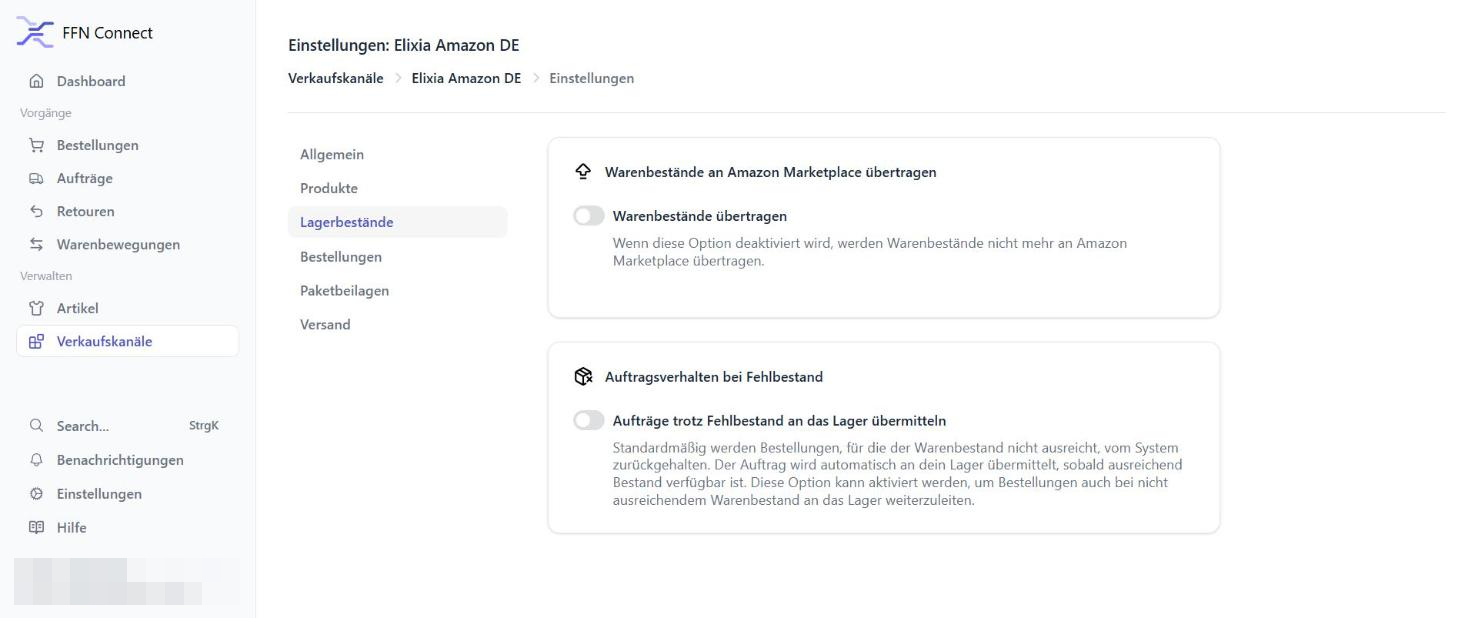
Einstellungen → Lagerbestände · The switch “Warenbestände übertragen” writes warehouse stock levels to your Amazon listings. Switch it on only after your inventory is booked in at StartFill — otherwise Amazon would show your products as out of stock.
Automatic fulfillment
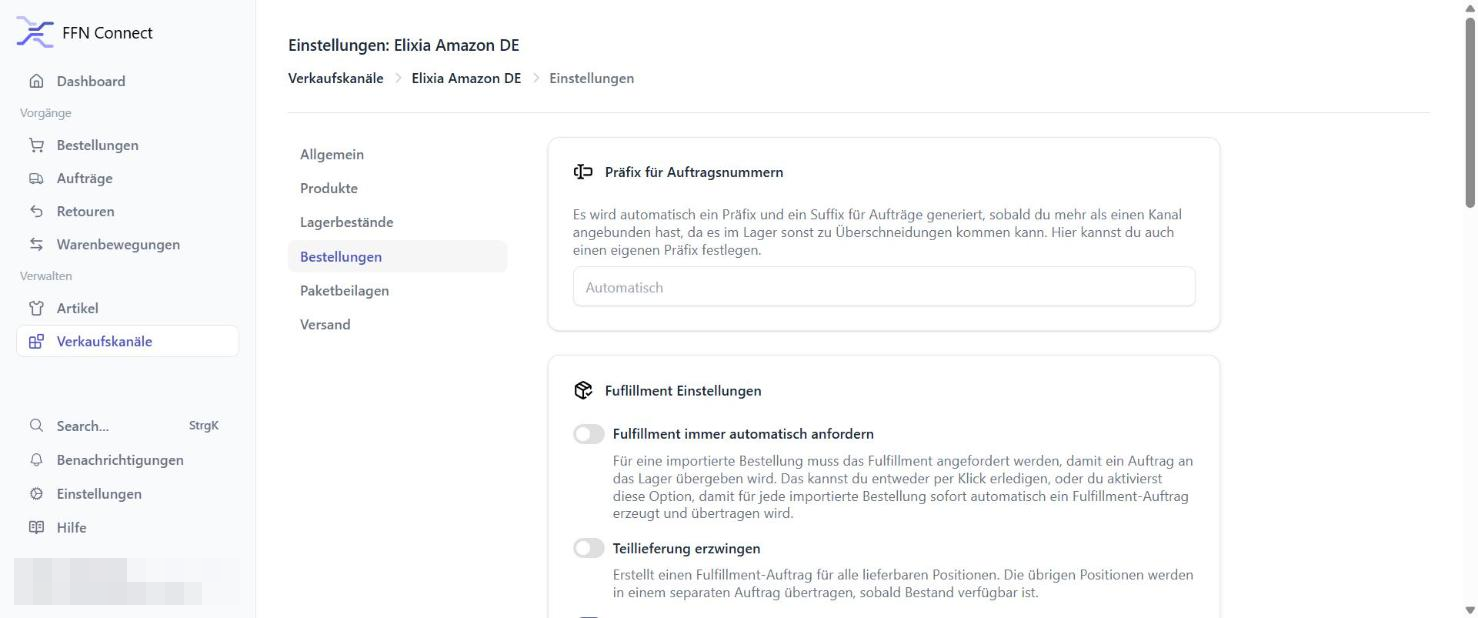
Einstellungen → Bestellungen · The switch “Fulfillment immer automatisch anfordern” forwards every imported order to the warehouse automatically. Keep it off during onboarding and release orders manually with one click; switch it on at go-live.
What happens next
Once your channel is connected, tell your StartFill contact. We link your account with our warehouse in the JTL Fulfillment Network, agree the delivery of your goods to Nuremberg, and confirm your go-live date. From then on: a customer buys on Amazon → the order arrives at StartFill automatically → we pick, pack and ship → the tracking number goes back to Amazon → your customer is notified. You watch it all live on your dashboard.
Amazon connection FAQ
Does FFN Connect see my Amazon password?
Do I need JTL-Wawi or any other software?
Can I connect more than Amazon?
What does it cost?
What about Prime / Seller-Fulfilled Prime orders?
My “Add sales channel” button does nothing.
Amazon shows an error during authorization.
What is the difference between the FFN and FFN Connect?
Do I also need an FFN (Fulfillment Network) account?
Can I send Amazon orders without connecting anything?
Prefer it as a document?
Download the complete guide as a PDF — including all screenshots — to keep or share with your team.
We’ll connect your store with you
Book a free 15-minute onboarding call and we do the whole setup together via screen share.