
Send your Amazon orders to StartFill via CSV
Manual fulfillment without any software or subscription — just your free FFN account and one CSV file per day. Ideal for low volume, pilots and fallbacks.
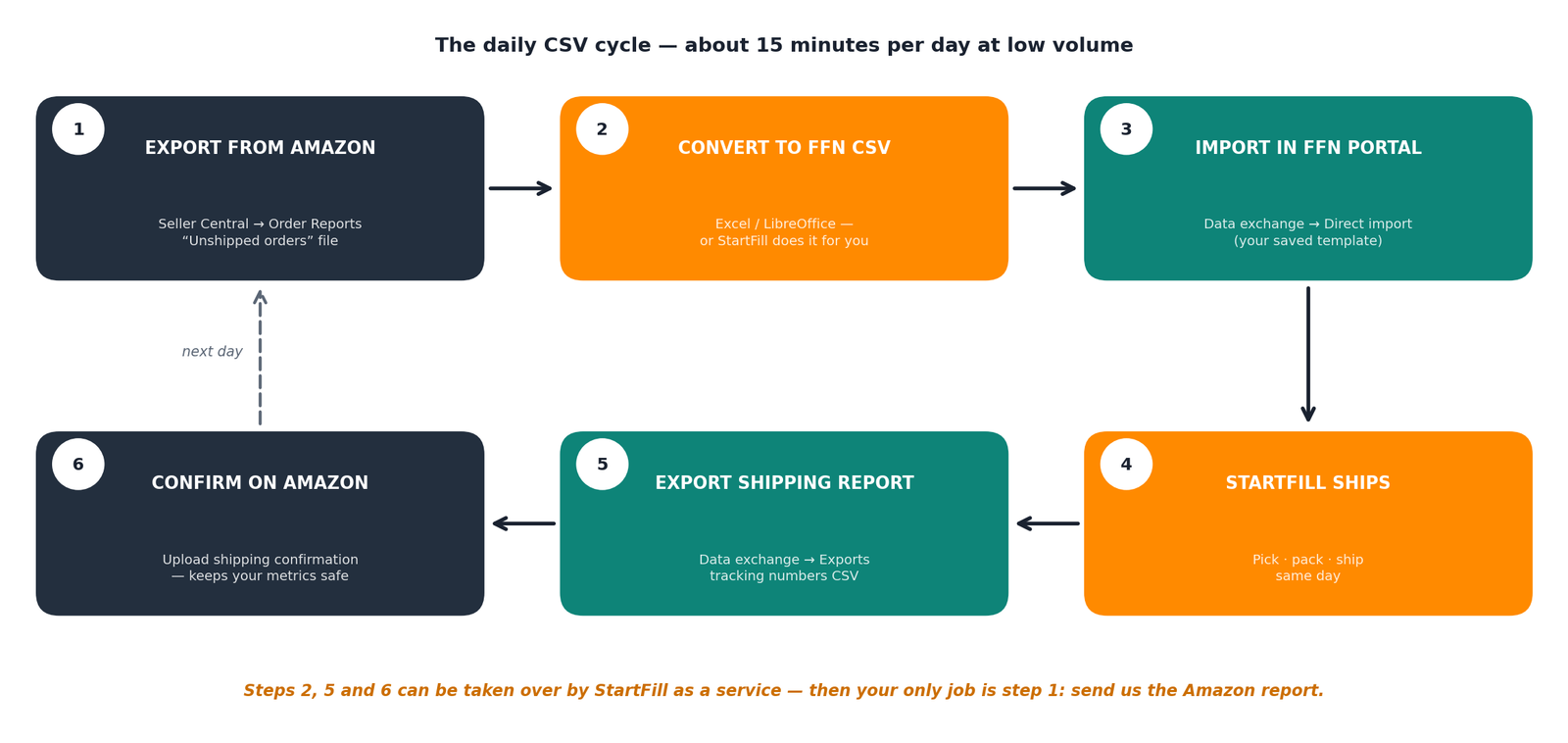
The daily CSV cycle
Three steps in the morning, three after we ship — about 15 minutes a day at low volume. StartFill can take over everything except step 1 for you.
Honest trade-off: this route is manual — best for up to ~10–20 orders a day and not for Prime. Beyond that, FFN Connect is cheaper than the daily labor.
Create your order import template
The FFN portal imports CSV files through templates: map your CSV columns to the FFN order fields once — after that, every daily import is two clicks. You need the free FFN merchant account with the StartFill cooperation approved.
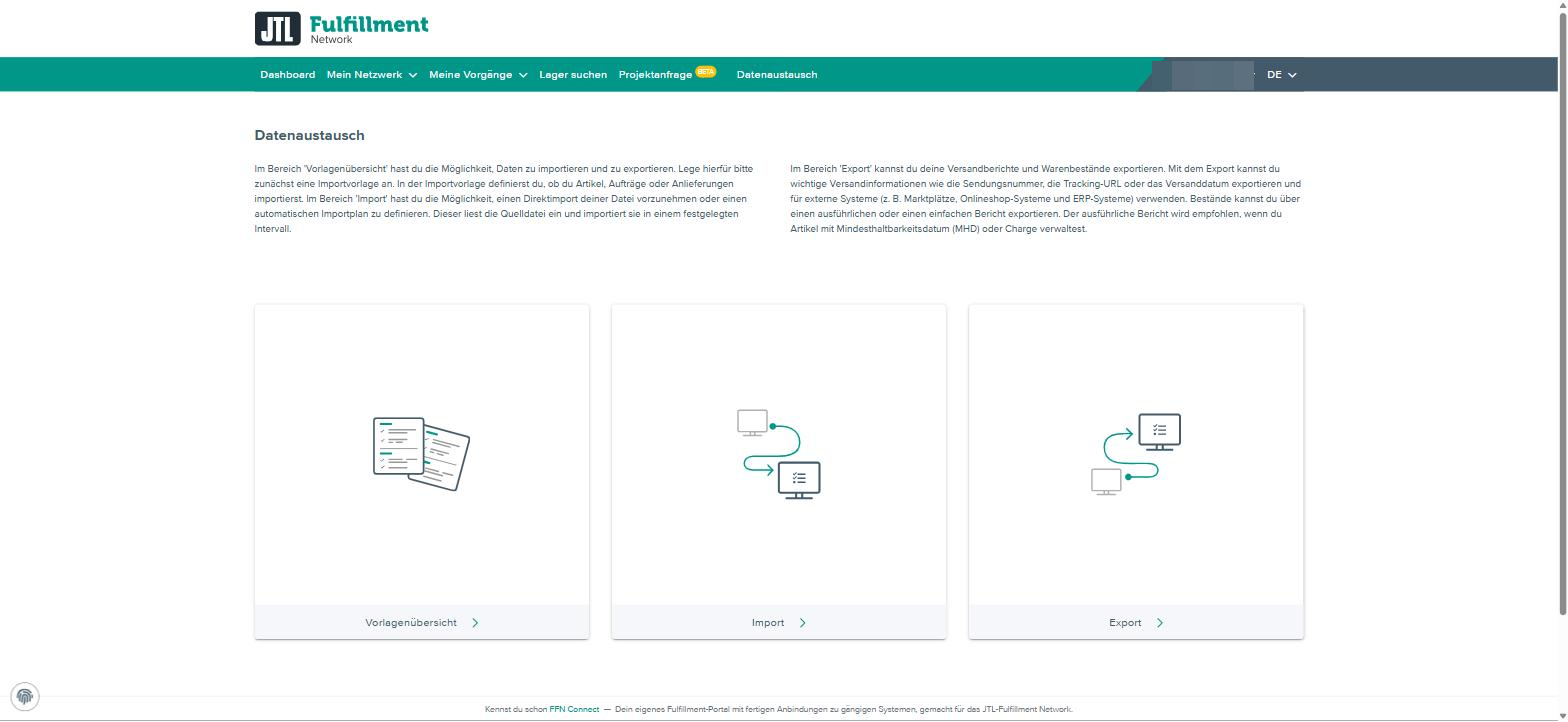
Open Data exchange
In the FFN portal menu, open Data exchange — you'll find Template overview, Import and Export. (Screenshots show the English portal; switch language top right.)
Create a “Sales order” template
Under Template overview → Create template, choose type Sales order and map your CSV column names to the FFN fields (fields with * are mandatory):
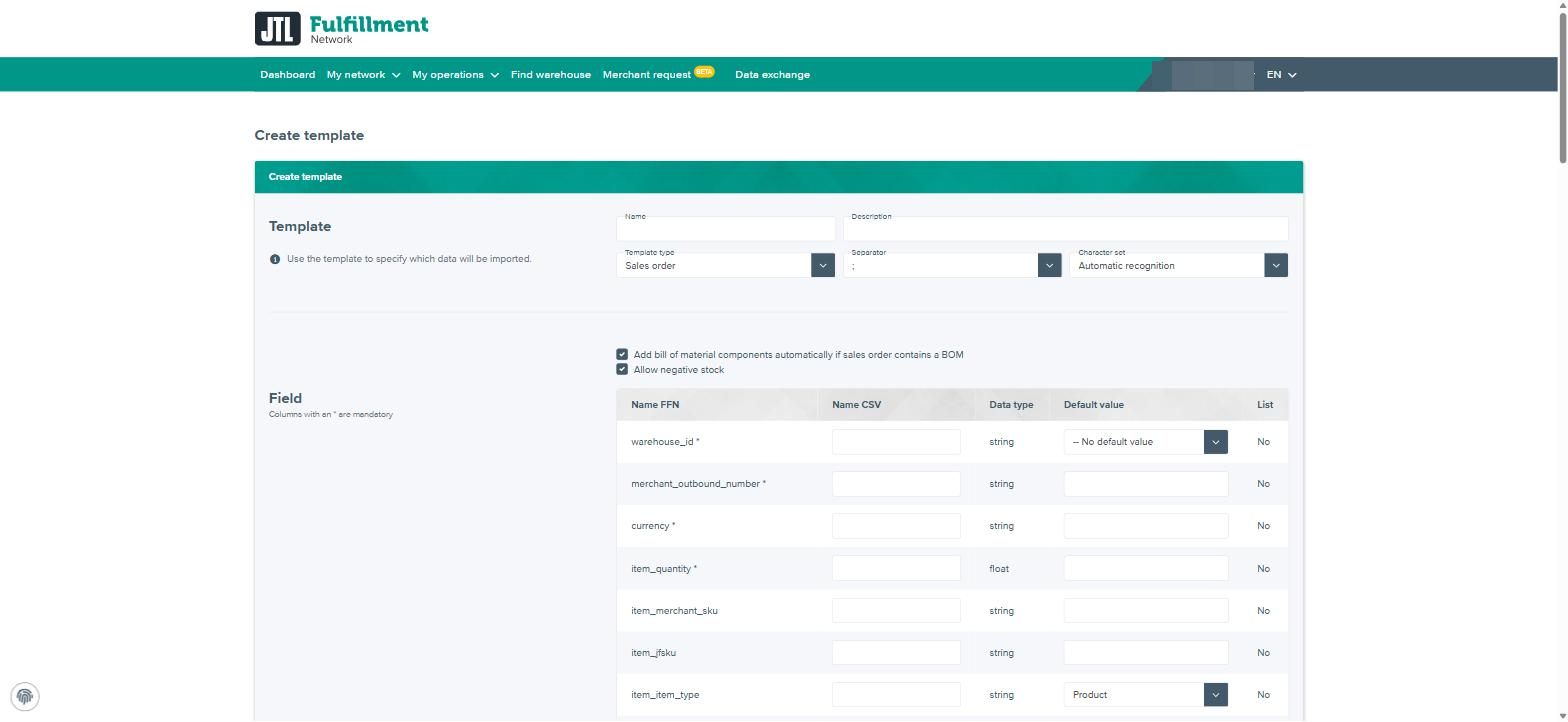
| FFN field | Recommended mapping |
|---|---|
| warehouse_id * | Fixed default value — StartFill gives you the warehouse ID |
| currency * | Default value EUR |
| merchant_outbound_number * | Amazon column order-id |
| item_quantity * | Amazon column quantity-purchased |
| item_merchant_sku | Amazon column sku — must match your FFN article SKU |
| shipping_address_… | Amazon columns recipient-name, ship-address-1, ship-city, ship-postal-code, ship-country |
The six-step routine
Export your open orders from Amazon
Seller Central → Orders → Order Reports → Unshipped Orders — a tab-separated file with order-id, SKU, quantity and shipping address.
Convert to your FFN CSV
Open in Excel/LibreOffice, keep the mapped columns, save as CSV (MS-DOS). Or skip this step: send us the raw Amazon report and we convert and import it for you.
Import in the FFN portal
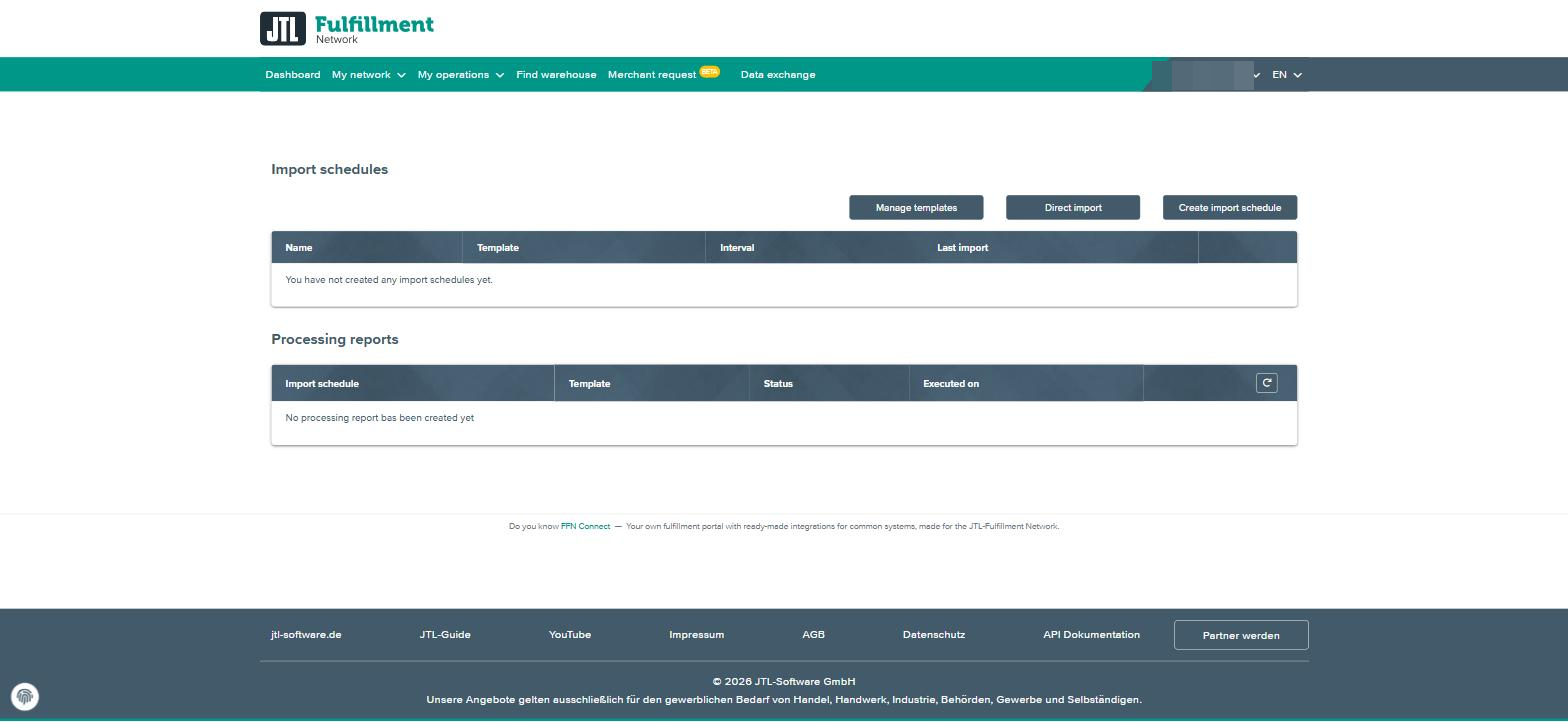
Data exchange → Import → Direct import — pick your template and file. The processing report shows any rejected lines; imported orders reach StartFill automatically.
StartFill picks, packs & ships
Nothing to do — orders with stock ship the same working day. Watch every order under My operations → Sales orders.
Export the shipping report
Data exchange → Export → Request shipping report — a CSV with carrier, tracking number, tracking URL and ship date per order.
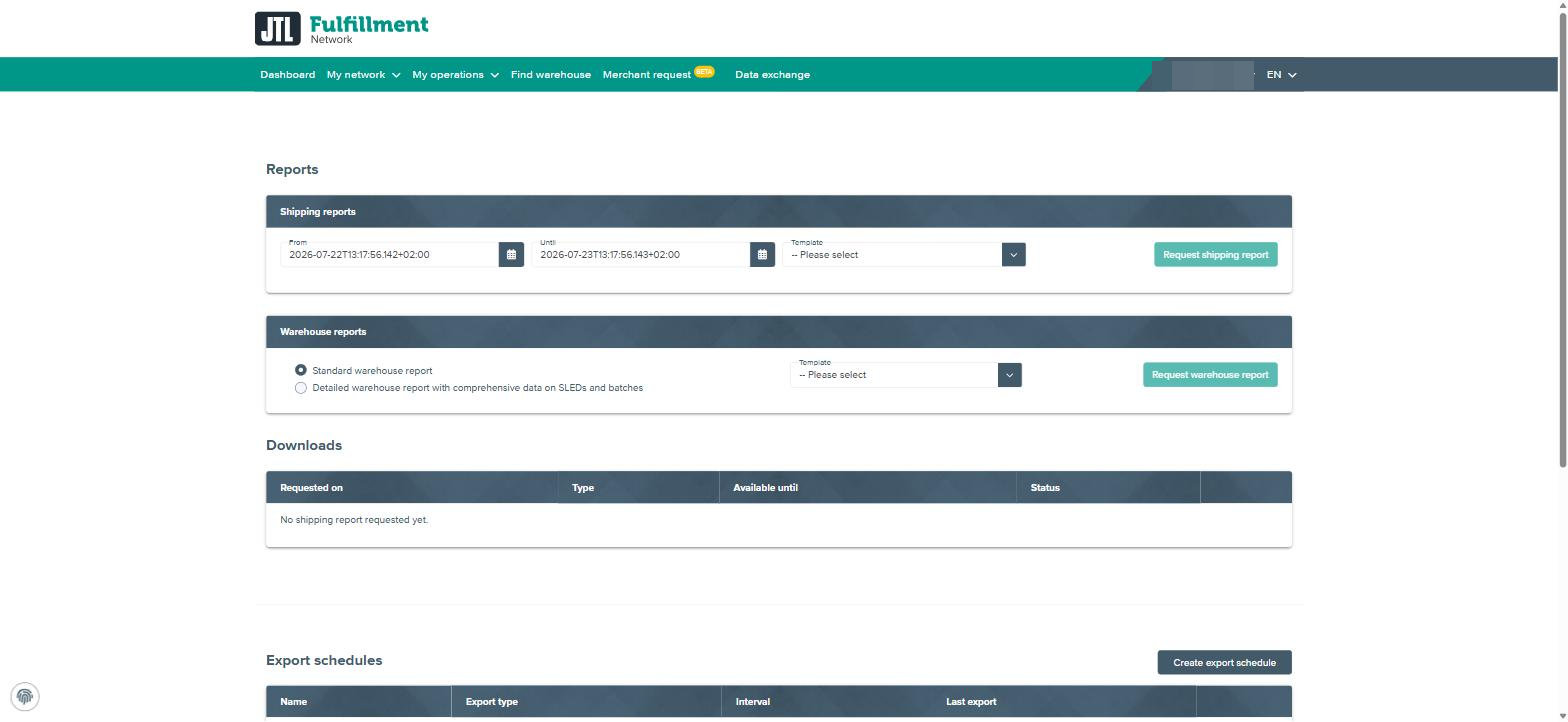
Confirm shipment on Amazon
Confirm the shipped orders with tracking in Seller Central — one by one in Manage Orders, or in bulk via the shipping confirmation file upload.
Three ways to lighten the load
StartFill as a service: you only do step 1 — forward the Amazon report, we convert, import and send back the ready-to-upload confirmation file. FTP schedules: the portal fetches your CSV and pushes shipping reports automatically. Or upgrade: past ~10–20 orders a day (or for Prime), switch to FFN Connect — everything syncs automatically and your FFN account, articles and stock stay exactly as they are.
CSV route FAQ
Do I need FFN Connect or any software for the CSV route?
How do orders know which product to ship?
What happens if a line fails to import?
Can I import several times a day?
How does the tracking number get back to Amazon?
Is this suitable for Prime orders?
Can other marketplaces or shops use the same CSV route?
Prefer it as a document?
Download the complete CSV guide as a PDF — including all screenshots and the field-mapping table.
We'll set up the CSV route with you
Book a free 15-minute onboarding call: we create your import template together, run the first import live, and agree who handles the daily cycle.