
Send orders by CSV — any channel
Your own shop, eBay, Etsy, a phone call, a wholesale customer, a sample shipment. One file, any mix of channels, as often as you like. Three steps, and the first one you only do once.
Watch it once, then do it
Twelve minutes on the real screens. For this page the part you need runs from 9:01 — your own CSV, the import template, and running the import. The first four minutes cover the two ways orders can reach us, and how to open the free JTL Fulfillment Network account.
Before anything else
The one thing to get right
One-time setup
Building your import template
FFN will not read a CSV until you have told it, once, what your columns mean. It takes about five minutes and you never touch it again. Do this in your own FFN merchant account, at fulfillment.jtl-software.com.
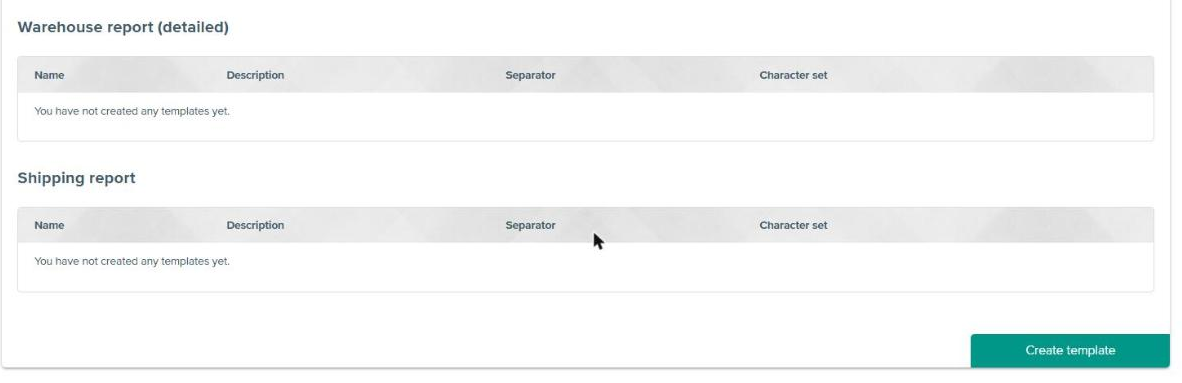
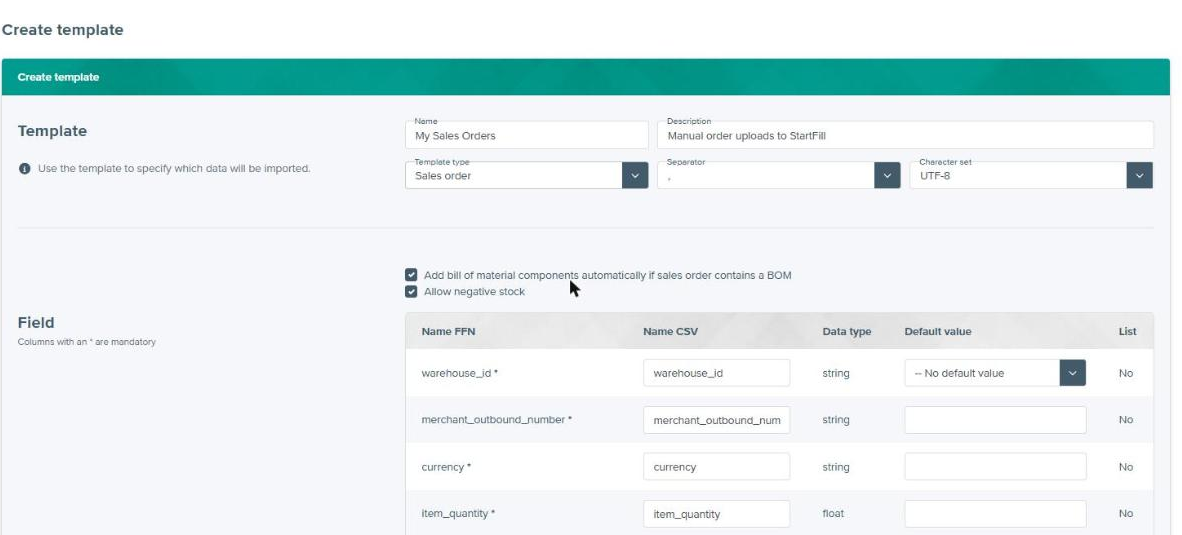
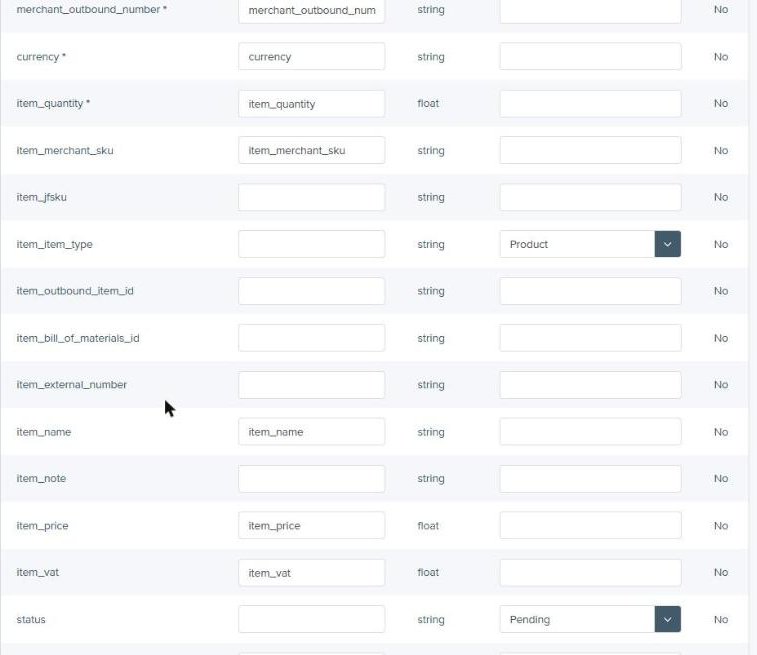
status and the item type.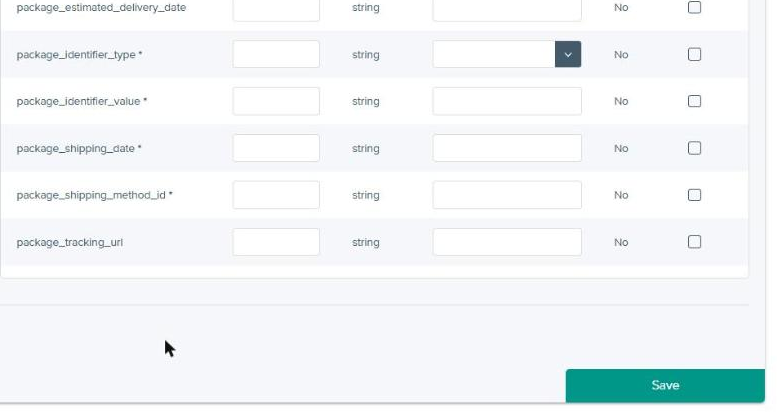
Step 2 · every time
Making the file
Start from one of our example files and replace the rows with your own. The headers are already the ones your template maps.
merchant_outbound_number are one parcel with two things in it, not two parcels. Every item_merchant_sku must already exist in your FFN item list. And keep the header row exactly as it comes: it is what the template matches on.
Every column, what it means and whether it is mandatory, is set out on the CSV field reference.
Every time
Running the import
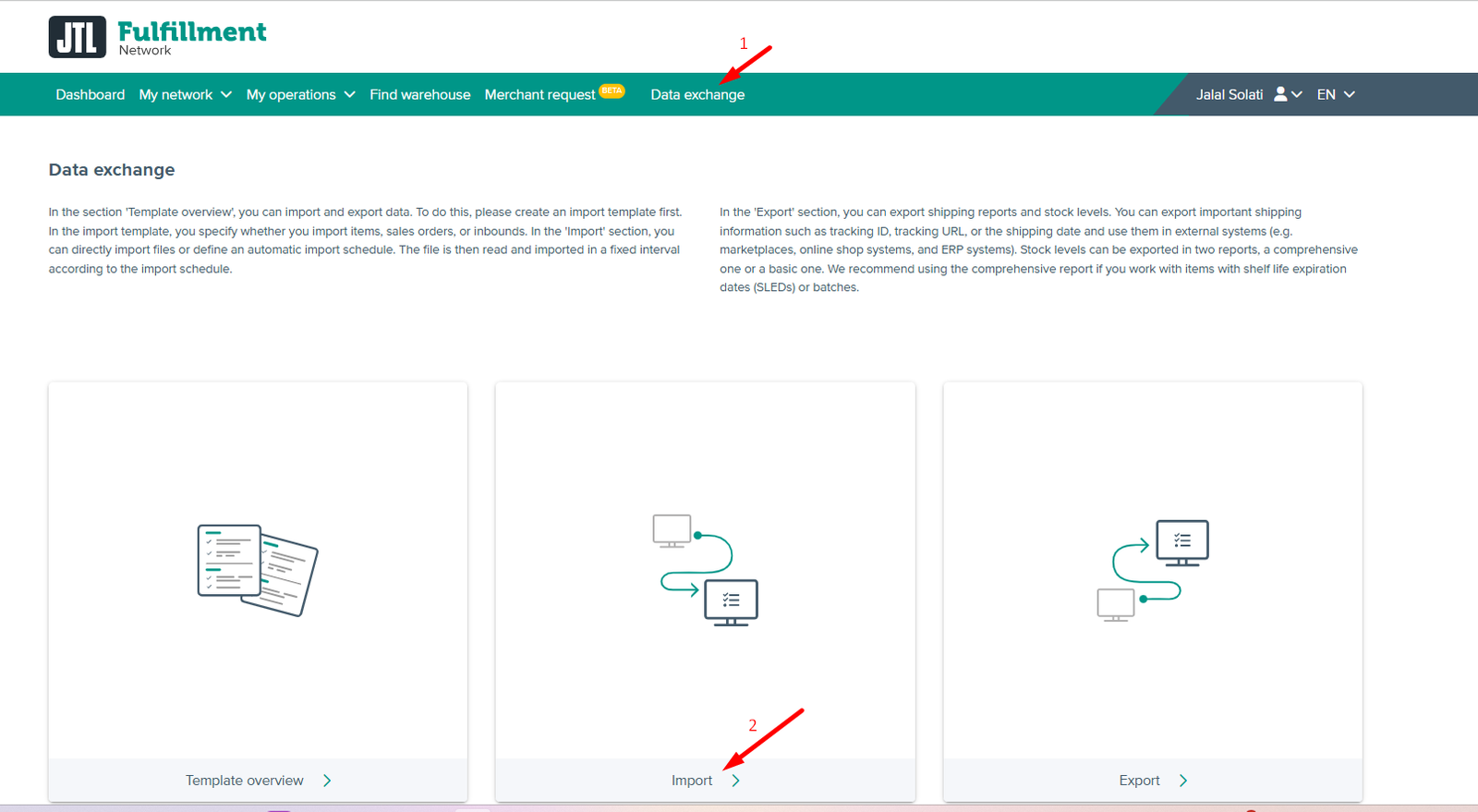
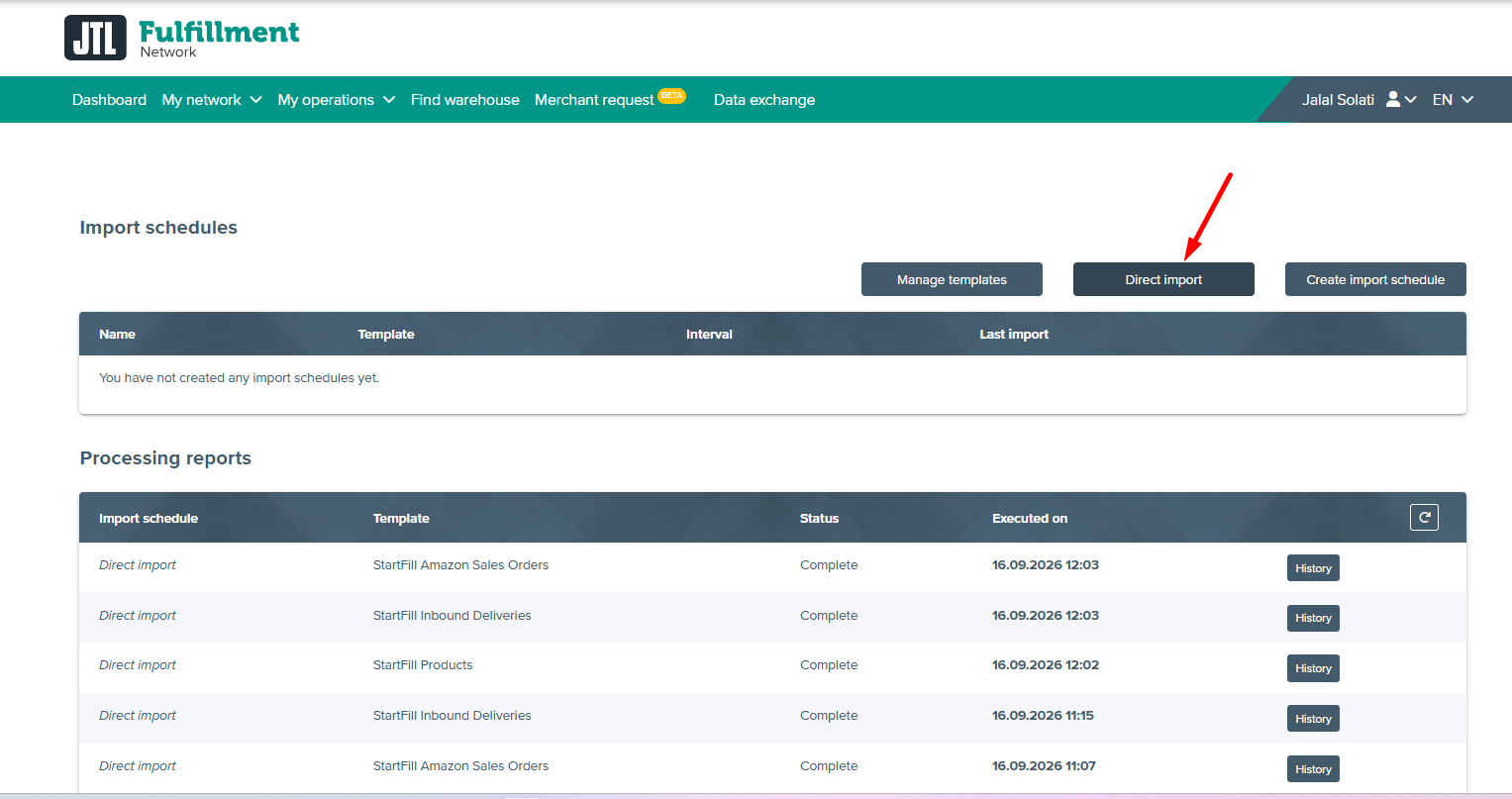
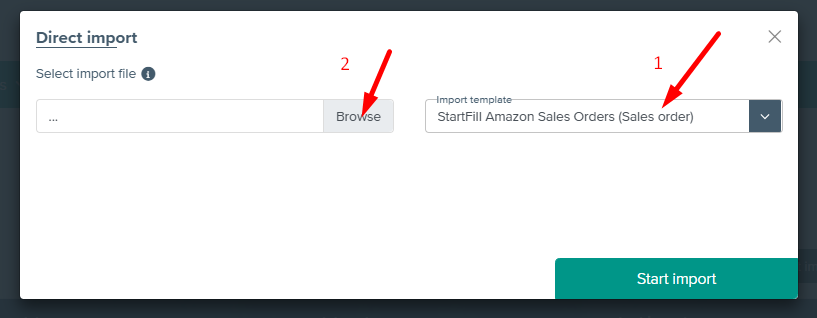
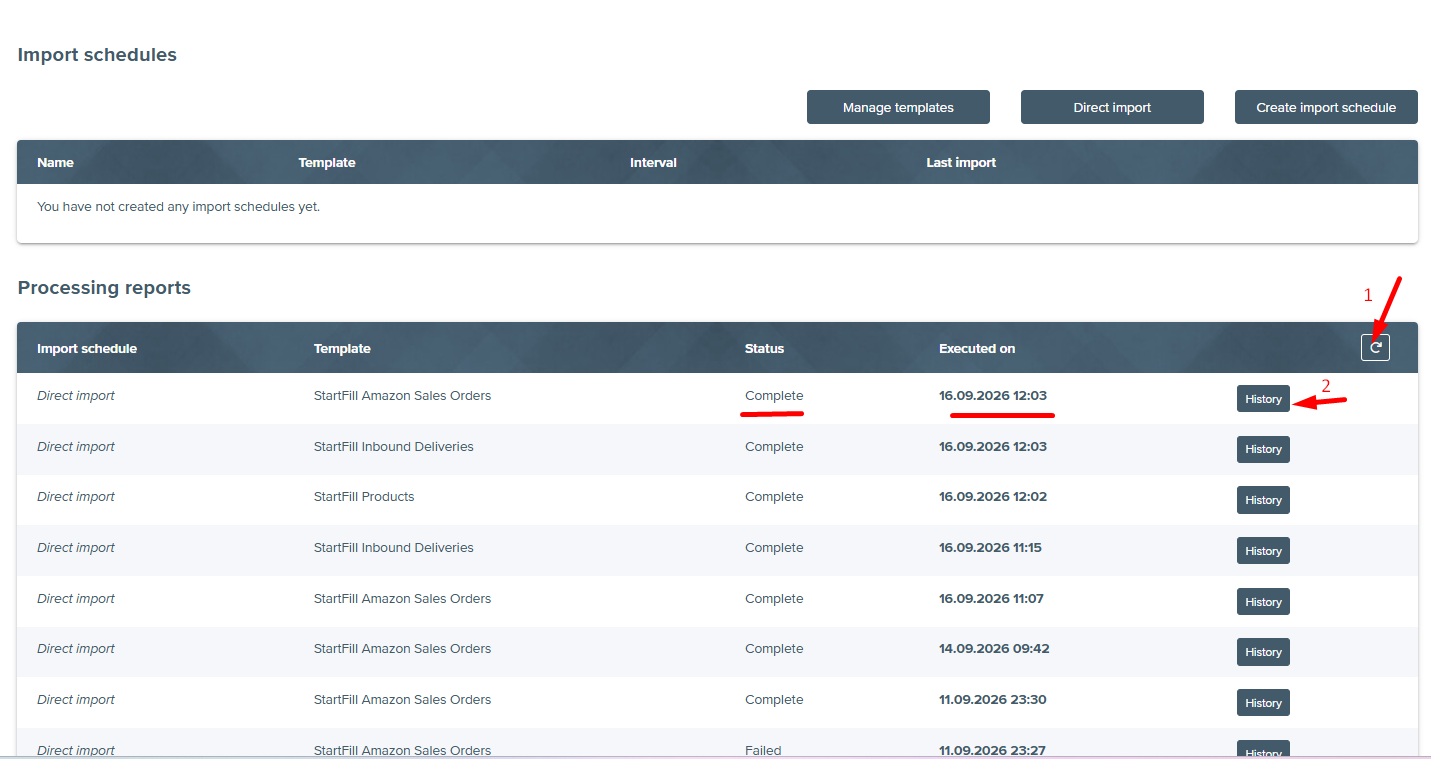
Template saved, file ready — this is the bit you repeat. Four screens, about a minute once you have done it once. It is the same four whether the CSV came from us with a check run or you wrote it yourself.
Last updated 19 September 2026
Still stuck?
Ask us — we would rather fix it than have you guess
Onboarding help, a walkthrough on a call, or a look at an upload that did not do what you expected.